Look for the InstallKey=****-****-****-****-*** value in the Nadeo.ini file located in your Steam install folder for TrackMania United.
The stars will be alpha-numeric characters (letters are capitalized/upper-case)
The default installation paths are:
32-bit Windows
C:\Program Files\Steam\steamapps\common\trackmania united\
64-bit Windows
C:\Program Files (x86)\Steam\steamapps\common\trackmania united\


2010-02-18
Google Sync Multiple Calendars on Your iPhone (version 3.0 or later)

Yes, you see it correctly.
Google now allows you to sync multiple calendars to your iPhone or iPod Touch (version 3.0 or later) by creating a CalDAV account.
Not only is it cool because you can have multiple calendars synced, but they're color coded like unto what you see when looking at the calendar in Google's interface through your web browser!
In the picture above, the blue dot represents entries from my scouts calendar; the red is from my personal one.
Don't delay! Go follow the detailed instructions on how to set your iPhone or Touch to sync multiple calendars from Google's help pages...
2010-02-11
Run TrackMania in NVIDIA SLI mode
Your mileage my vary, but I finally got TrackMania United Forever to work with my NVIDIA GeForce 9800 GX2 card in SLI mode.
All of you out there who have tried this share the same pain and know what I'm talking about... sunlight shining through solid objects (especially dirt hills), rainbow colored dust trails kicked up by your car when driving on dirt, among other anomalies.
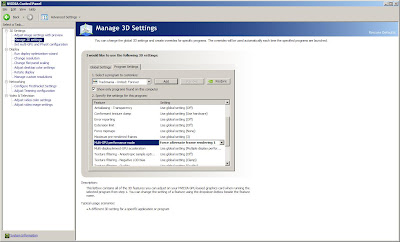
I got annoyed at having to turn SLI mode manually in the NVIDIA Control Panel for TrackMania so I didn't see these anomalies. I finally found a way to not have to anymore... I tested it for about 20 minutes tonight and it seems to work great. Here's what you do:
Click "Apply" and launch your game.
That's all there is to it... GG!
(Please let us know if you have success, or know of a better workaround for this... and if you noticed improvement over running in single-GPU mode.)
All of you out there who have tried this share the same pain and know what I'm talking about... sunlight shining through solid objects (especially dirt hills), rainbow colored dust trails kicked up by your car when driving on dirt, among other anomalies.
I got annoyed at having to turn SLI mode manually in the NVIDIA Control Panel for TrackMania so I didn't see these anomalies. I finally found a way to not have to anymore... I tested it for about 20 minutes tonight and it seems to work great. Here's what you do:
- Right-click an open area of your desktop and select "NVIDIA Control Panel"
- Make sure you're in "Advanced Settings"
- In the left pane, select "Set multi-GPU and PhysX configuration" and make sure "Enable multi-GPU mode" is selected under "2. Select the multi-GPU configuration:" setting.
- In the left pane, select "Manage 3D Settings" under the "3D Settings" category.
- Click on the "Program Settings" tab.
- Under "1. Select a program to customize:" ... click the Add button and browse to the TrackMania executable. It could be in one of many places, depending on how you bought the game; your safest bet is to look at your desktop shortcut's properties, or the properties of the shortcut in the Programs Group.
- Under "2. Specify the settings for this program", select "Multi-GPU performance mode" and select the "Force alternate frame rendering 1" setting (see screenshot below.)

Click "Apply" and launch your game.
That's all there is to it... GG!
(Please let us know if you have success, or know of a better workaround for this... and if you noticed improvement over running in single-GPU mode.)
2009-08-13
I keep launching Outlook, but the interface won't come up!!! What can I do to bring it up?
This problem rears its ugly head at times when you're using ActiveSync with a Windows Mobile device.
What happens is, if the device is syncing anything related to Outlook, an instance of OUTLOOK.EXE runs in the background, and can be seen in Task Manager. For some reason, when you launch Outlook again after this background instance of it is already running, it thinks it doesn't need to bring up the UI.
The solution is to kill all the OUTLOOK.EXE processes from the "processes" tab in Task Manager, then launch Outlook again. The UI should come up after that.
The process goes as follows...
Open Task Manager:
1. Right-click the taskbar and select "Task Manager" or...
2. Hit Ctrl-Alt-Delete and select "Task Manager"
Click on the "Processes" tab in Task Manager.
Click the "Image Name" column to sort the names of the running processes.
Find each OUTLOOK.EXE
Right-click the OUTLOOK.EXE process and select "End Process Tree"
Once all OUTLOOK.EXE's have been stopped, attempt to launch Outlook again.
Hope this helps!
What happens is, if the device is syncing anything related to Outlook, an instance of OUTLOOK.EXE runs in the background, and can be seen in Task Manager. For some reason, when you launch Outlook again after this background instance of it is already running, it thinks it doesn't need to bring up the UI.
The solution is to kill all the OUTLOOK.EXE processes from the "processes" tab in Task Manager, then launch Outlook again. The UI should come up after that.
The process goes as follows...
Open Task Manager:
1. Right-click the taskbar and select "Task Manager" or...
2. Hit Ctrl-Alt-Delete and select "Task Manager"
Click on the "Processes" tab in Task Manager.
Click the "Image Name" column to sort the names of the running processes.
Find each OUTLOOK.EXE
Right-click the OUTLOOK.EXE process and select "End Process Tree"
Once all OUTLOOK.EXE's have been stopped, attempt to launch Outlook again.
Hope this helps!
2009-05-06
2009-05-03
Windows XP Computer Can't Be Seen Properly on Network
I installed Windows XP Pro fresh on a new machine I built at home. I'd done this several times in the past and was able to successfully see all those machines on the network with no problem.
This one was different, however. I could do everything I wanted from this particular machine to the others in my network (pushing/pulling files to other shares on other machines), but I couldn't get the others to talk to this one.
The only difference with this computer's install was that it was done from the Windows XP SP3 CD. My prior installs were done on earlier XP versions.
It seems the SP3 CD will firewall your connection by default and NOT count "File and Printer Sharing" as an exception.
To resolve it, you need to get that Exception enabled (recommended) or disable your Windows Firewall for the connection (not recommended).
To enable the exception in Windows Firewall (assuming Windows Firewall is enabled on the connection):
You should now be able to ping the computer by name and access its file shares, etc. on your network.
This one was different, however. I could do everything I wanted from this particular machine to the others in my network (pushing/pulling files to other shares on other machines), but I couldn't get the others to talk to this one.
The only difference with this computer's install was that it was done from the Windows XP SP3 CD. My prior installs were done on earlier XP versions.
It seems the SP3 CD will firewall your connection by default and NOT count "File and Printer Sharing" as an exception.
To resolve it, you need to get that Exception enabled (recommended) or disable your Windows Firewall for the connection (not recommended).
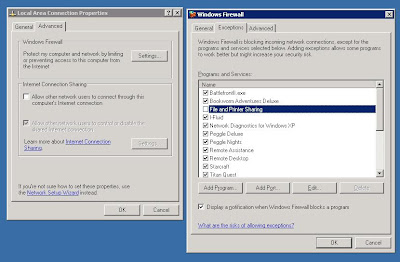
To enable the exception in Windows Firewall (assuming Windows Firewall is enabled on the connection):
- Open Network Connections (Start >> Settings >> Control Panel >> Network Connections; or use your favorite quicker means...)
- Right-click the offending connection >> Properties >> "Advanced" tab
- Click the "Settings" button for Windows Firewall >> "Exceptions" tab
- Check the "File and Printer Sharing" checkbox
- Click OK on the Windows Firewall dialog.
- Click OK on the Connection Properties dialog.
Screenshot
in the non-working state
(click to see full-size)
in the non-working state
(click to see full-size)

You should now be able to ping the computer by name and access its file shares, etc. on your network.
2008-11-19
iTunes Applications Tab "Greyed Out" (Disabled) for a Registered iPod Touch
I made my first leap into the Apple world yesterday with my shiny new iPod Touch. I messed around on it for 2 hours downloading some game applications and songs.
When I was ready to shut down for the night... I noticed some settings that would allow me to put restrictions on its use. I thought, "Great! Now I can lock my kids out of downloading whatever random application they go looking for, since this Touch is linked to my iTunes account; which is linked to my payment information."
So I turned on the restriction for installing apps; thinking it would only stop someone that was using my iTouch on a Wi-Fi network from installing applications from the App Store. I turned off my iPod and slept for the night.
The next day I fired up iTunes with my trusty Touch connected to the USB on my laptop. I downloaded one more app from iTunes and was going to sync with my Touch.
I clicked on the Applications tab in iTunes for my iPod Touch and all the controls were greyed out (disabled.)
It turns out you need to lift/remove the restriction on your iPod in order to enable iTunes to install an app on it too.
To enable/disable the restriction, navigate to:
Settings >> General >> Restrictions >> Installing Apps
EDIT: Make sure you sync your device after making the change... some have still had the option greyed out after making the change.
Annoying, but safe... and now you know...
When I was ready to shut down for the night... I noticed some settings that would allow me to put restrictions on its use. I thought, "Great! Now I can lock my kids out of downloading whatever random application they go looking for, since this Touch is linked to my iTunes account; which is linked to my payment information."
So I turned on the restriction for installing apps; thinking it would only stop someone that was using my iTouch on a Wi-Fi network from installing applications from the App Store. I turned off my iPod and slept for the night.
The next day I fired up iTunes with my trusty Touch connected to the USB on my laptop. I downloaded one more app from iTunes and was going to sync with my Touch.
I clicked on the Applications tab in iTunes for my iPod Touch and all the controls were greyed out (disabled.)
It turns out you need to lift/remove the restriction on your iPod in order to enable iTunes to install an app on it too.
To enable/disable the restriction, navigate to:
Settings >> General >> Restrictions >> Installing Apps
EDIT: Make sure you sync your device after making the change... some have still had the option greyed out after making the change.
Annoying, but safe... and now you know...
Subscribe to:
Posts (Atom)